You often arrange your messy folders. And you were so bored with that. The only solution for this problem is to mark your favorite folders on Windows for easier access. Here are some ways to help you do that.
|
Join the channel Telegram belong to Anonyviet 👉 Link 👈 |
Assign shortcut (shortcut) for the folder
The easiest method to link to your folder is to create shortcut. Windows allows you to create bookmarks to any folder in Windows File Explorer. When you double click on the shortcut, it will immediately take you to the position of that folder. Like instant movement.
After you create your Bookmark Folder, you can put it somewhere more convenient to access later. It could be desktop or folder containing other shortcuts.
To create a shortcut, right -click on the folder you want, choose “Create Shortcut”.
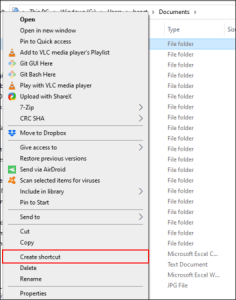
It will create a shortcut of the same position as your folder. You can then move it to another position.
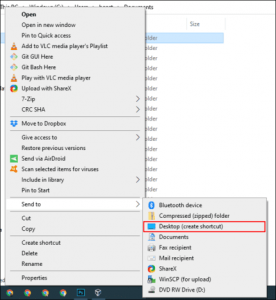
Shortcut you have just created for a while already in the desktop.
Create Jump Lists on Task Bar
Thanh Taskbar is the horizontal bar at the bottom of the desktop. So if you have a pin Windows File Explorer On the Taskbar to create bookmark folders. You can quickly access your favorite folders with Jump Lists (Task Bar Jump Lists).
What is Jump Lists? Right -click on Windows File Explorer in Taskbar, a list of recent access folders that will appear. For convenience, you can book your favorite Folder at the beginning of this list.
By default, Jump Lists of Windows File Explorer Show about 12 items. But you can increase this number. To add a folder to this list, you must drag and drop it to the Windows File Explorer shortcut on the Taskbar.
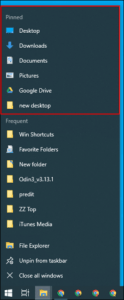
If you want to delete, right -click on the keyboard shortcut Windows File Explorer, move the mouse through your stapled folder, then click on the icon UN-PIN Appeared on the right.
List of Quick Access (Quick Access)
Similar Jump Lists on Taskbar, Windows File Explorer There is a navigation bar on the left side Quick Accesss. The Quick Access list also provides your Jump Lists list. When you pin a folder to the Quick Access, that directory will also appear when you right -click on the Explorer file in the taskbar.
You can add folders to the Quick Access list in many ways. Right -click on one of your favorite folders, then click “The big battery “battery” To create Bookmark Folder.
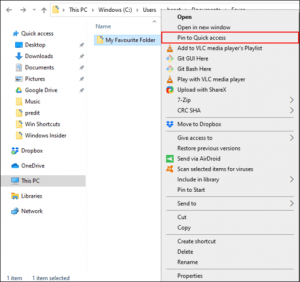
Or you can drag and drop those folders into the Quick Access section in File Explorer.
Start menu Windows 10 of not only provides a list of your installed programs. You can depend on the list of programs displayed on the right Start Menu with the application shortcuts.
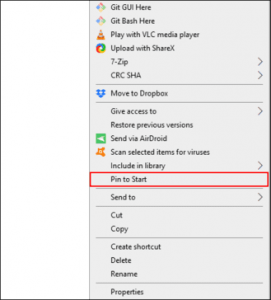
This makes Start Menu a great place to mark some of your favorite folders. Open the Explorer file and locate the folders you want to bookmark. Right -click on them and then press “Battery to start”.
Your folders after pin will appear in the form of squares at the end of the list. From here, you can move your folders to more convenient locations or create groups to arrange them.
To do that, move the mouse to the top of the list. Dialog box “Name Group” will appear, click on it and then enter the name of your favorite folder group.
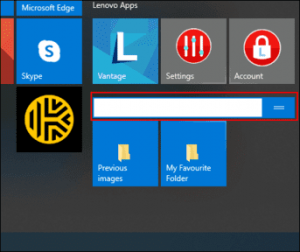
Once you're done, move your folder shortcuts to that group. After that, you can rearrange groups containing folders to a more convenient position for operation.
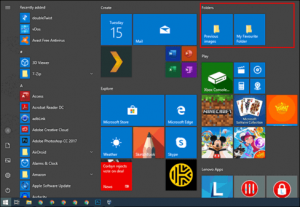
Taskbar above Windows 10 Allows you to access additional features or shortcuts. For example, you can create a toolbar to easily access all files in your folder.
To create bars Tootbarright -click on Taskbar, choose “Toolbars”and then click “New Toolbar”.
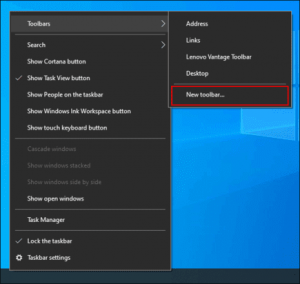
Choose one of your favorite folders, then click “Select Folder”.
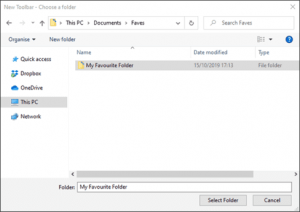
A new toolbar appears. Click “>>” Besides the name of the tool bar (the name of the tool bar is also the name of the folder you chose earlier).
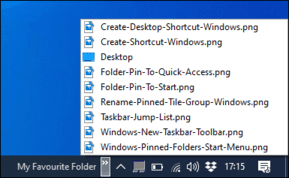
A list of all files and folders will appear to help you access faster.
You can create a folder containing all the shortcuts of other folders. Then also create a toolbar for that folder. Unlike the Jump Lists, only listing 12 items, the toolbar can contain infinite what you want.
Libraries of File Explorer
Microsoft decided to hide the Libraries tab from the Explorer file, but this feature is still quite useful. To use it, just bring the library tab back to your navigation frame.
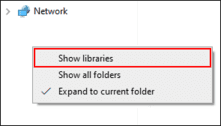
To trigger the access to Libraries, right -click the whiteness of the Explorer file navigation compartment, then click on “Show Libraries”.
Next, click on the tab “Libraries” Appears in the navigation compartment. From here, right -clicking into the spaces in the Libraries window, selecting “New”and then click “Library”.
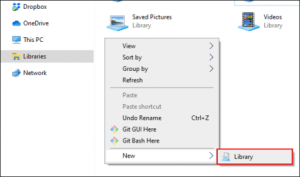
Name your new library, then double -click it to open.
Your new library does not have any folders, click “Include a folder”and select the folder you want to add.
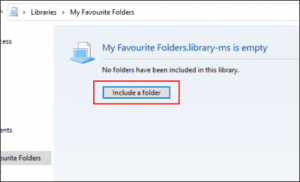
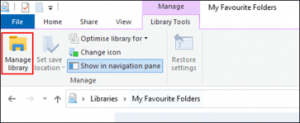
Your library displays folders into a list for easy access. To add or delete folders, click “Library Tools” In the menu of File Explorer, then press “Manage Library”.
From here, you can add or delete folders. When you have completed, click “OK”.
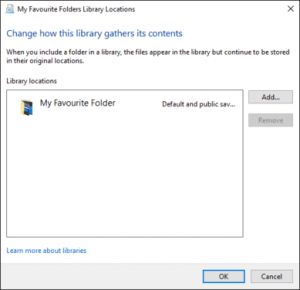
Your new library has been updated. Now you can immediately access the folders you have chosen.
Collaborator: Kiet Pham