In today’s era, data is very important and most people store their data on computers and protect it with passwords. But sometimes users can’t even remember the created password. So, if you forgot your Windows 10 password and are stuck at the login screen, don’t panic, because there is a handsome admin who will guide you through 4 extremely useful and convenient ways to break your Windows 10 password.
📢 Join the channel Telegram belong to AnonyViet
Update new articles, cool tools and IT tips fastest
Method 1: Command Prompt
Command Prompt, also known as CMD, is an important tool that helps you crack Windows operating system passwords very effectively. However, before starting, you must have a Windows installation USB or System Recovery USB. If you don’t have one, you can create one Microsoft’s Media Creation Tool using your friend’s computer or going online, for example.
Plug the Windows 10 installation USB into your computer. Restart the computer and boot into the USB. Additionally, you need to disable UEFI and Secure Boot. Your computer will display Windows Setup on the screen. Here, you need to press a key combination Shift + F10 to open cmd.
Your job in cmd is to replace the file utman.exe equal cmd.exebut before you do that, you must make a copy of Utility Manager. Type the command below to copy and move the utman.exe file.
move C:\windows\system32\utilman.exe C:\windows\system32\utilman.exe.bak
copy C:\windows\system32\cmd.exe C:\windows\system32\utilman.exe
Now, restart your computer by typing the command below and then pressing the Enter key.
wpeutil reboot
After restarting Window, you will be back at the login screen, but this time you have a few more options and one of them is the Utility Manager located at the bottom of the screen, click on it and select Command Prompt.
In cmd, you just need to type the two commands below. The first command will help you create a new user account and the second command will give you control over the admin account.
net user XYZ/add
net localgroup administrators XYZ /add
Note: XYZ is the local user account name and you can also change it to the name you like.
Close the command prompt and restart the computer. After that, your computer will boot into the Windows 10 installation USB and you must press the key Shift + F10 put it in cmd.
Now, you need to restore the Utility Manager by entering the command below.
copy C:\utilman.exe C:\windows\system32\utilman.exe
The overwrite confirmation message will appear, press the key Y to confirm. Next, restart your computer by typing the command below and make sure to remove the Windows installation USB from the computer.
wpeutil reboot
After restarting your computer, you will return to the login screen, but this time you will get a new account. Click on the created account to access Windows 10.
This method is quite long and you must have some knowledge to do it. Otherwise, it will be easy to make errors when entering commands, depending on the version of Windows.
Method 2: Use PassGeeker for Windows
The above method seems a bit difficult and also a bit long, so I will introduce to you an easier method, which is PassGeeker Windows Password Recovery 7. This is the best tool to help crack Windows 10 password in a short time without much effort. PassGeeker supports many Windows operating systems, starting from Windows XP and going up to Windows 10.
Step 1: Prepare a secondary computer to install PassGeeker. After installation is complete, plug the USB into your device and open PassGeeker.
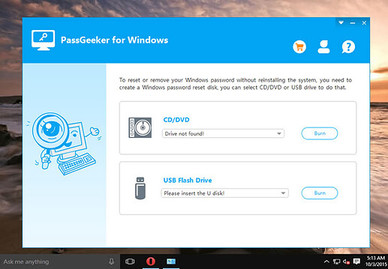
Step 2: You will have two options: CD/DVD and USB Flash Drive. Select the location of the USB drive and then click the button Burn. Do the same if you use CD/DVD.
Step 3: The recording process will take a few minutes, and once completed, close the application and remove the USB drive.
Step 4: Now, insert the USB on the locked computer and reboot. Boot into the USB, you will see the PassGeeker window on the screen along with a list of user accounts.
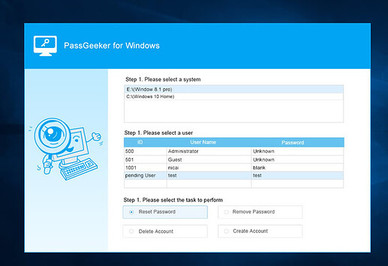
Step 5: Select the locked account and click the button Remove Password. You will receive a success notification if your password has been cleared. Finally, click the button Reboot.
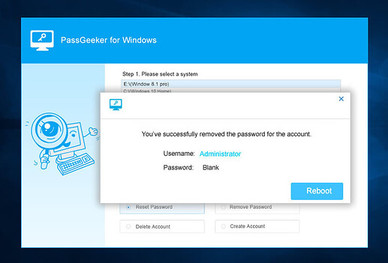
That’s it. PassGeeker is a very effective, fast software with a quite smooth interface that helps users complete their work without spending too much effort.
Method 3: Offline NT Password & Registry Editor
Offline NT Password & Registry Editor is a recovery tool that helps you crack Windows 10 password. Its features are great but the algorithm is a bit different from other password recovery tools. To access the outstanding features of Offline NT password, you need to follow the steps listed below.
Web access Offline NT Password & Registry Editor and download the USB version (Bootdisk). Unzip the downloaded file in zip format and then copy all the files in the extracted folder to the USB. Next, type the command below:
X:syslinux.exe -ma X:
Replace X with the letter of the USB drive, for example: E. Then, remove the USB and plug it into the locked computer.
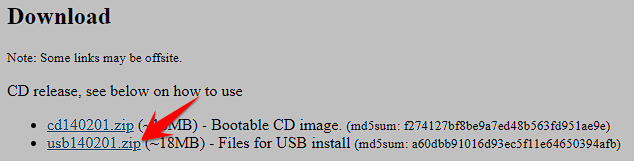
Now, restart the locked computer and boot into USB. After making the changes, the boot process will continue and load the Offline NT Password. Here you will have to press the Enter key to start the process.
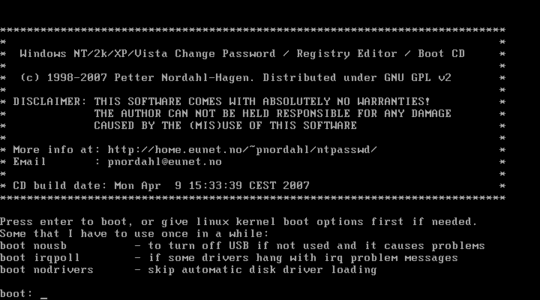
Now select the partition where Windows is installed and for that partition you can enter the corresponding numbers. However, if you only have one operating system installed, use the default settings and press the Enter key. Then, select options password reset by entering the corresponding number or else you can press the key Enter to switch to default settings.
After the Windows registry has finished loading, the tool will find and load additional options, select them Edit user data and passwords. You will then get a list of user accounts, select the locked account by entering the number and then pressing the key Enter.
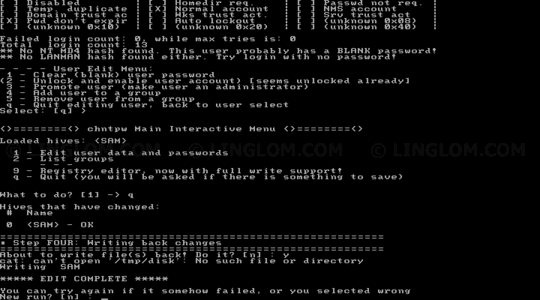
You’ll find additional options at the bottom of the screen, enter 1 to clear the user password, then press the Enter key. A password deleted message will appear on the screen and you need to enter it **!** and press the key Enter. Your work is done, now type q to close the Edit user data and password section.
Now, type Y and press the key Enter to confirm password reset. Close the application and remove the CD/USB when you’re done.
Offline NT Password & Registry Editor is easy to use for users with knowledge of commands. If you are not very sure about the command, then you can skip this method and can switch to PassGeeker.
Method 4: break Windows 10 password with Hiren’s Boot CD
Hiren’s Boot CD PE is an old but still powerful tool, it can crack Windows 10 password easily. Hiren’s Boot CD is very simple and easy to use.
Create USB boot using Hiren’s Boot CD ISO from another computer. Now, insert the bootable USB into the locked computer and then boot the USB drive. Restart your computer, Hiren’s Boot CD PE will start booting the device, you need to press any key to continue.
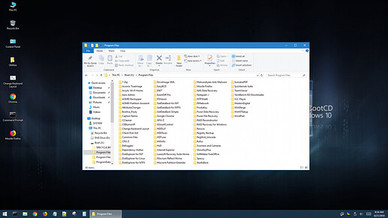
Then you will be taken to Windows PE and at the Desktop screen you will see the Utilities folder, click on it. In the Utilities section, you will see a folder Security click it. Select folder Password in the Security folder. Then choose NT Password Edit.
In section Path to SAM Fileyou need to point to your system’s SAM folder. Then you will get a list of users, select foldersAdministrator and click the button Change Password.
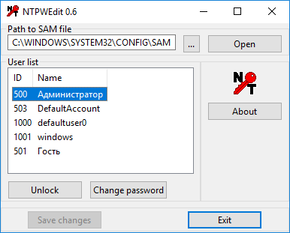
You will be asked you to enter a new password, you can create a new password or else you can leave it blank. To reset password, leave it blank and click the button OK. Now click the button Save changes.
After completing the above operations, remove Hiren’s bootable USB and boot into Windows without having to use a password anymore.
Hiren’s Boot CD is a universal way and works well with all versions of Windows OS. However, you need to create a bootable USB.
Frequently asked questions
Do I need highly technical knowledge to use these methods?
Depends on the method you choose. The Command Prompt method requires command line knowledge and can be more complicated. Other methods such as using PassGeeker or Offline NT Password & Registry Editor are easier to use and friendly to less experienced users.
Are these methods safe?
Using these methods to access your computer is safe if you follow the instructions correctly. However, using third-party tools is always risky, so download from trusted sources and be careful during the process.
What if I still have problems after trying these methods?
If you still cannot recover your password, you may need to contact a technical support specialist or seek support from technology forums for further assistance.