What do you do next once you have created some new Windows software. I thought when you finished creating the software, you might want to share it with everyone? So how do you plan to share, compress all the files and give it to others, I think this is not a good way because it can expose the source if you don’t know how to protect the source. Instead, you can create an EXE installation file, which will be much more convenient and neat.
| Join the channel Telegram of the AnonyViet 👉 Link 👈 |

In this article, I will show you 3 ways to create your own EXE installation file: decompression software, built-in IExpress and use Inno Setup.
3 ways to create installation file EXE
1. Create a quick EXE installation file with 7-Zip
Maybe you used 7-Zip to decompress all types of archives and know that 7-Zip can compress data, but did you know that you can also use it to create EXE setup files?
It is called SFX archive (self-extracting), which works by zipping all your end files together, then embedding a special EXE file inside the archive to extract everything.
In other words, users can extract SFX archives (as EXE files), even if they don’t have the right software, compatible with formats like 7Z, RAR, TAR and ZIP.
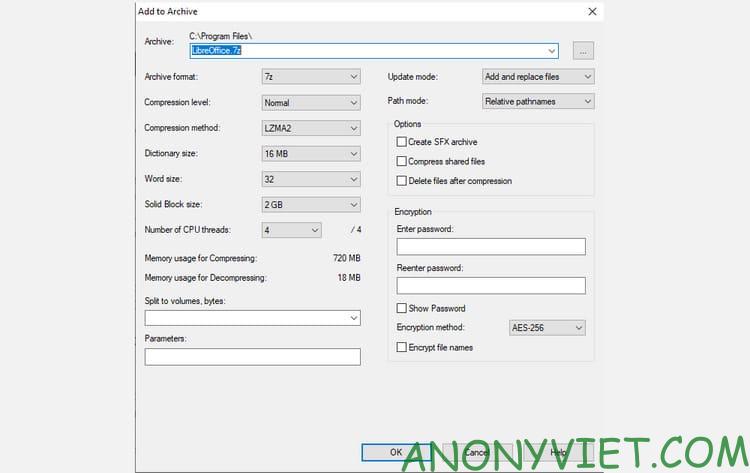
Here’s how to create an SFX archive with 7-Zip:
Step 1: Prepare all your files and folders in a single main folder and name the folder however you like.
Step 2: Right click on the folder and select 7-Zip > Add to archive…
Step 3: In Optionsturn on Create SFX Archive and select the following settings…> Archive Format: 7z> Compression Level: Normal> Compression Method: LZMA2> Dictionary Size: 16 MB> Word Size: 32> Solid Block Size: 2 GB
Step 4: Finally, click OK.
Note that the SFX archives are not the actual installer. This method does not place the extracted files in a specified destination directory. And do not modify the Windows Registry. Furthermore, they do not create an installation log and also do not show up as installed software in the uninstaller application. Literally, they are archive files as EXE files.
2. How to use IExpress to create an EXE installation file easily
IExpress is a utility available in Windows starting from Windows XP and up. The utility comes with a graphical front-end interface (called IExpress Wizard), but you can also create an exe installation file using the Self Extraction Directive (SED) file.
Like 7-Zip above, this method creates a self-extracting archive, but there are two key differences: one, the end user will proceed through a multi-page installation wizard, and two, the user The end user can specify the archive directory for the tool to extract the files.
And here’s how to create an EXE installation file using IExpress:
- Open Run (press Windows + R) and type iexpress.exe to launch the IExpress Wizard.
- Select Create new Self Extraction Direct file and click next.
- Select Extract files only and click next.
- In the Package title section, enter the name of your application.
- In the confirmation prompt, select No prompt or Prompt user with. If you choose Prompt user with then enter confirmation questions like “Are you sure you want to install this?”.
- In the license agreement section, select Display a license if you want the end user to agree to the End User License Agreement (EULA). If not, you can choose Do not display a license.
- Add all the files you want users to see installed by clicking Addselect those files.
- Continue through the IExpress Wizard and select the options you want for the prompts Show Window and Finished Message.
- For the package name, click Browse, navigate to where you want to create the EXE installer and give it a name. This is the EXE file that you will distribute to end users. Press next.
- Finally, choose Save Self Extraction Direct (SED) if you want to create an installer that can be modified later, such as when you’ve patched software and need to update the installer. If you choose Don’t save, you will be back to the beginning of the installation process.
- On page Create Packagepress next.
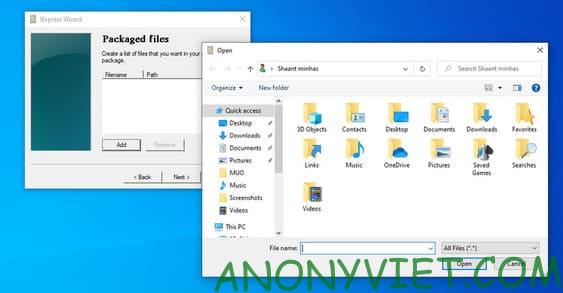
Your installer will be created in a few minutes. Note that IExpress has some problems as follows:
- Empty directories are not allowed.
- If your installation has subfolders, the subfolders will not be added.
- If you have multiple files with the same name, even in separate folders, the installer creation process will fail.
Because of the above problems, I recommend you to use the method below.
Creating an EXE installation file is using Inno Setup
Inno Setup is an open source utility developed since 1997. It was created in conjunction with InstallShield Express at that time. Since then, it has become the exe installer file generator of choice for those who don’t care about the concept of exclusivity.
The biggest draw of Inno Setup is its flexibility. Inno Setup uses script files with the ISS extension (“Inno Setup Script”) to customize various parts of the installer: which files are combined, where to install, whether to create shortcuts, etc. ISS files uses the same format as the INI file and can be created using the Inno Setup Wizard.
To create an installer using Inno Setup, launch the Inno Setup Compiler application. In the welcome window, select Create a new script file using the Script Wizard. Enter your App Name and App Version. You can also add App Publisher and App Website details. Finally press next.
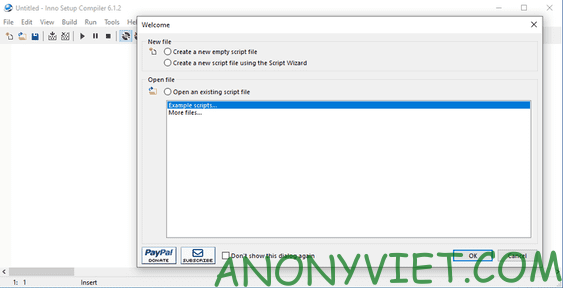
- Now choose Destination base folderwhich defaults to Program Files.
- Enter name Application folder name, which is the name of the home directory where your installation files will be stored. Press next.
- For Application main executable fileselect the main EXE file that will launch your application.
- If the app is not installed, enable The application doesn’t have a main executable file. Then add files and folders to your settings with Add files… and Add folders… Press next.
- On the Application Shortcuts page, leave the defaults or change them to suit your preferences. Press next.
- On the Application Documentation page, you can point to three TXT files that will be visible during the end-user installation. Usually, they will be LICENSE.TXT, INSTALL.TXT, and README.TXT, but they can also be anything you want. Press next.
- On the Setup Languages page, select English, but you can add more languages. Press next.
On Compiler Settings, you can customize the installer’s EXE file:
- Custom compiler output folder is where the installer’s EXE file resides.
- Compiler output base file name is the EXE file to be called. The default setting is setup.exe.
- Custom Setup icon file is the icon that the installer EXE file will use. This should be the ICO file.
- Setup password will protect unauthorized users from using your installer. Leave blank to disable this feature.
After configuring the settings, select finish. When prompted to compile the new script, press Yes. When prompted to save the script, select No if this is a one time installer file. Select Yes if you plan to modify or update it later.
Download Inno Setup here.
So you can create the EXE installation file successfully. In addition, you can also convert html files to exe here.