• Home
  • News
  • Software
  • Knowledge
  • MMO
  • Tips
  • Security
  • Network
  • Office
AnonyViet - English Version
  • Home
  • News
  • Software
  • Knowledge
  • MMO
  • Tips
  • Security
  • Network
  • Office
No Result
View All Result
  • Home
  • News
  • Software
  • Knowledge
  • MMO
  • Tips
  • Security
  • Network
  • Office
No Result
View All Result
AnonyViet - English Version
No Result
View All Result

Lesson 260: Quick analysis in Excel

AnonyViet by AnonyViet
January 25, 2023
in Office
0

This article will show you how to do a quick analysis in Excel.

Join the channel Telegram of the AnonyViet 👉 Link 👈

Quick analysis

Use the Quick Analysis tool in Excel to quickly analyze your data. Quickly sum, quickly insert tables, etc.

total

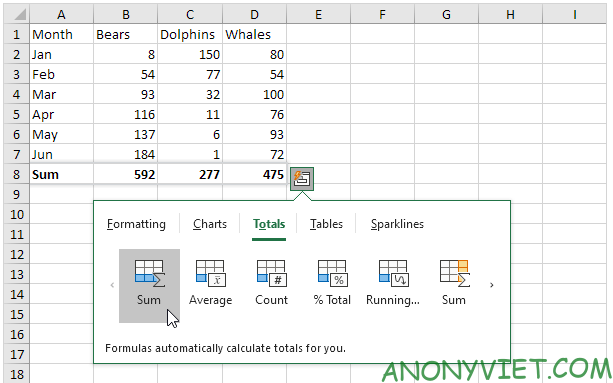
Instead of displaying a total row at the bottom of an Excel table, use the Quick Analysis tool to quickly sum up.

1. Select the range and click the Quick Analysis button.
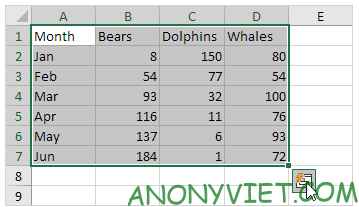
Lesson 260: Quick analysis in Excel

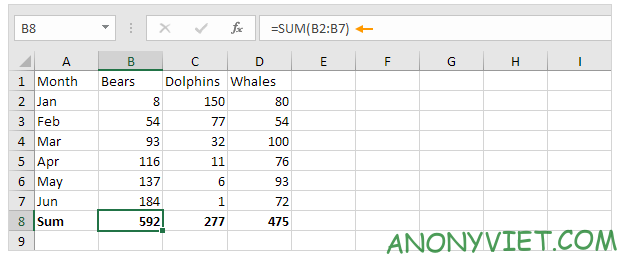
2. For example, click Totals and click Sum to sum the numbers in each column.
Lesson 260: Quick analysis in Excel 24

Result

Lesson 260: Quick analysis in Excel 25

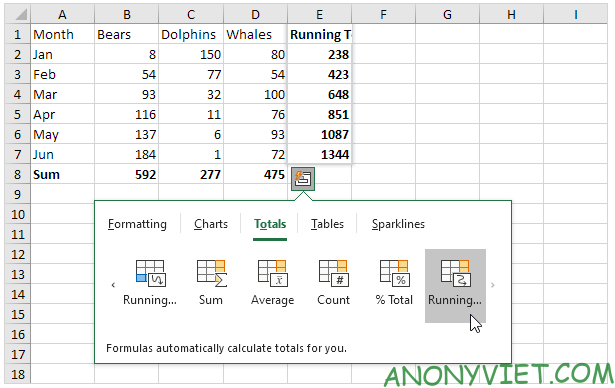
3. Select the range A1:D7 and add a column Totals -> running .
Lesson 260: Quick analysis in Excel 26

Note: row totals are blue and column totals are yellow-orange.

Board

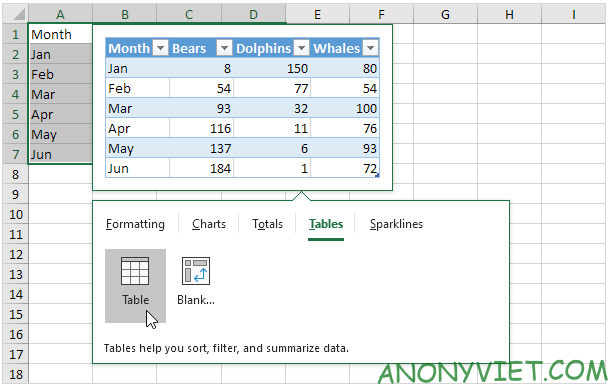
Use tables in Excel to sort, filter, and summarize data. Pivot tables in Excel allow you to extract from a large, detailed data set.

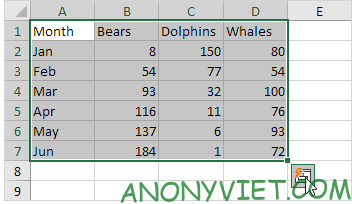
1. Select the range and click the Quick Analysis button.
Lesson 260: Quick analysis in Excel 27

2.To quickly insert a table, click Tables and click Table.
Lesson 260: Quick analysis in Excel 28

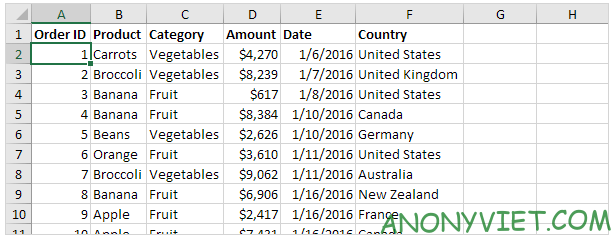
3. Download files: Link and open the second sheet

4. Click a cell in the data table.
Lesson 260: Quick analysis in Excel 29

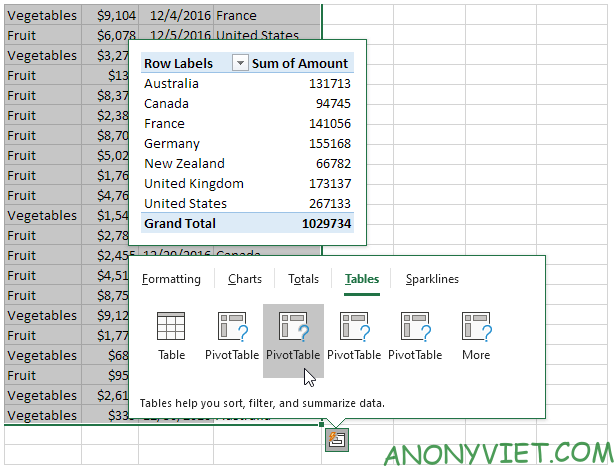
5. Press CTRL + q. This shortcut selects all data and opens the Quick Analysis tool.

6. To quickly insert a pivot table, click Tables and click one of the ones below
Lesson 260: Quick analysis in Excel 30

Format

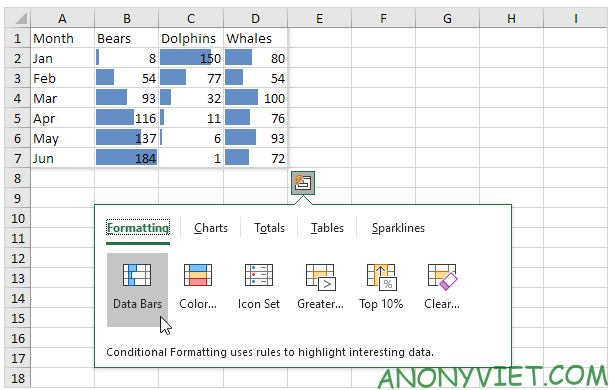
1. Select the range and click the Quick Analysis button.

Lesson 260: Quick analysis in Excel 27

2. Add data bars, click Data Bars.

Lesson 260: Quick analysis in Excel 32

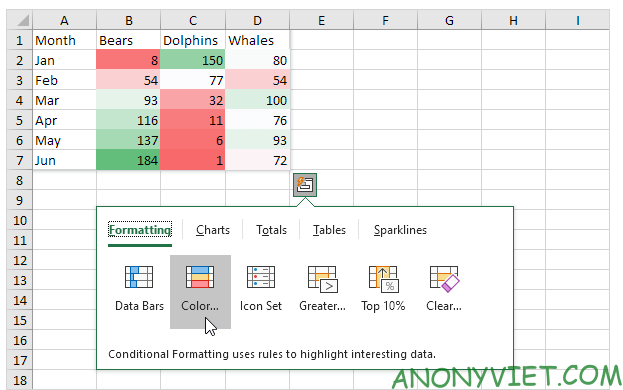
3. To add color, click on Color Scale
Lesson 260: Quick analysis in Excel 33

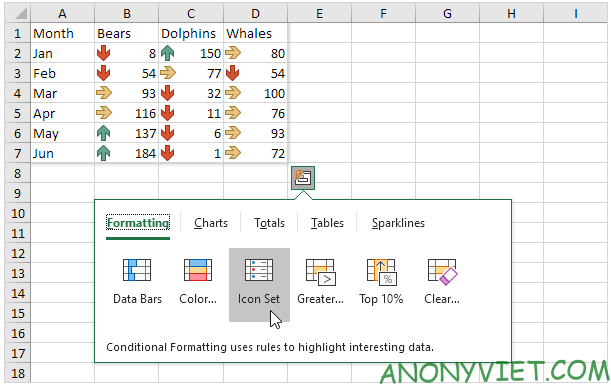
4. To add icons click Icon set

Lesson 260: Quick analysis in Excel 34

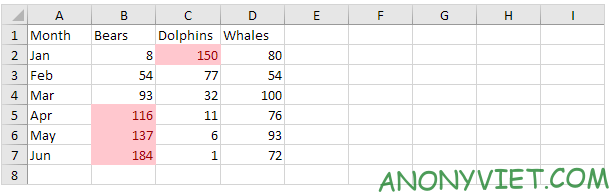
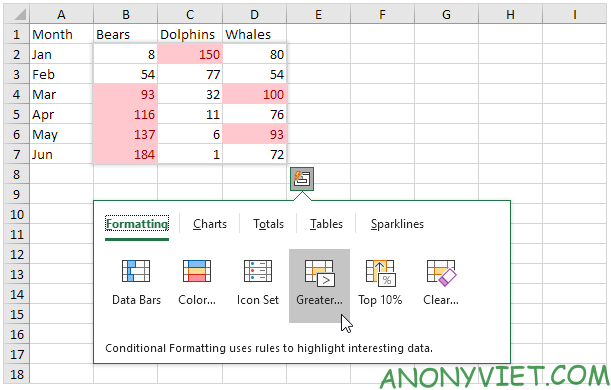
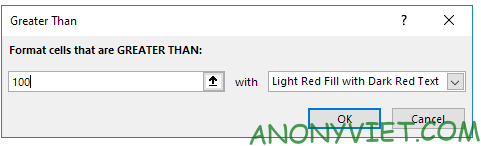
5. To highlight cells greater than one value, click Greater Than..
Lesson 260: Quick analysis in Excel 35

6. Enter the value 100 and select a format type.
Lesson 260: Quick analysis in Excel 36

7 Press OK

Lesson 260: Quick analysis in Excel 37

Chart

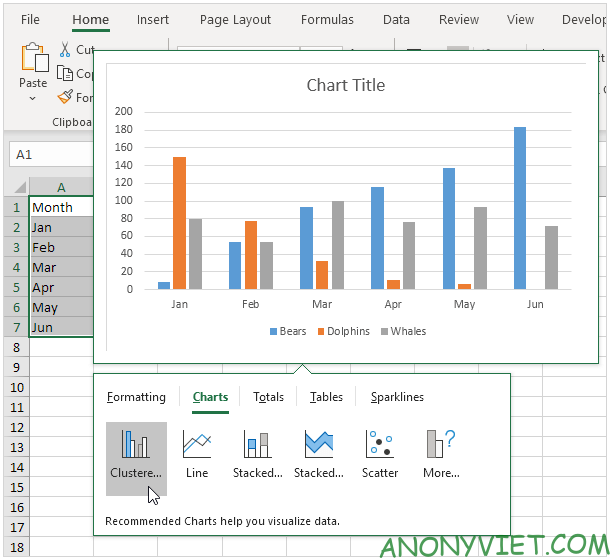
You can use the Quick Analysis tool to quickly create charts.

1. Select the range and click the Quick Analysis button.

Lesson 260: Quick analysis in Excel 38

2. Click Charts and click Clustered Column to create a column
Lesson 260: Quick analysis in Excel 39

Polylines

1. Download the file: Link and open the 3rd sheet

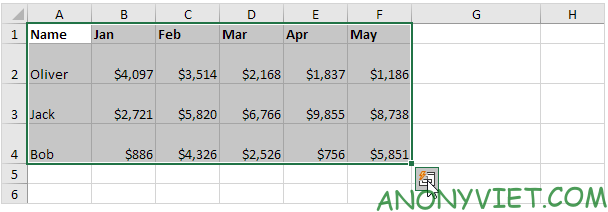
2. Select the range A1:F4 and click the Quick Analysis button.
Lesson 260: Quick analysis in Excel 40

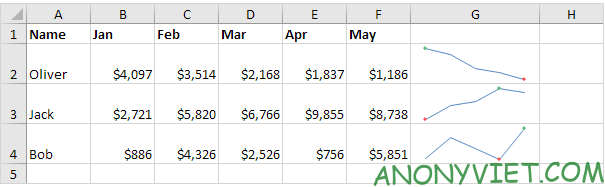
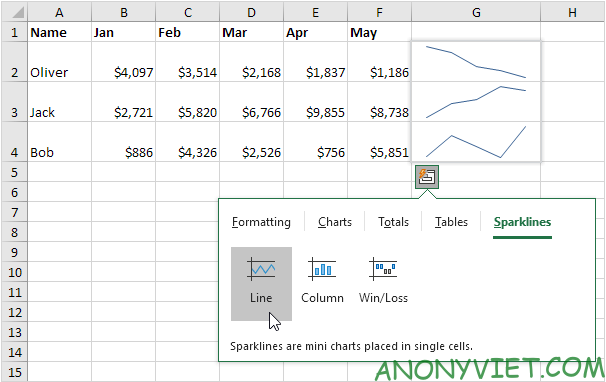
3. Click Sparklines and click Line to add zigzag lines.
Lesson 260: Quick analysis in Excel 41

Result:

Lesson 260: Quick analysis in Excel 42

In addition, you can also view many other excel articles here.

The article achieved: 5/5 – (100 votes)

Tags: AnalysisExcelLessonQuick
Previous Post

MiniTool Partition Wizard 12.6 Full Key – Best Partition Manager Software

Next Post

Quickly register for Email Proton.me (until April 30, it’s free)

AnonyViet

AnonyViet

Related Posts

Top who creates the most beautiful presentation slide today
Office

Top who creates the most beautiful presentation slide today

September 23, 2025
Automatically check and correct spelling errors on Google Docs
Office

Automatically check and correct spelling errors on Google Docs

February 23, 2025
Instructions for downloading Google Docs files easily on any device
Office

Instructions for downloading Google Docs files easily on any device

December 18, 2024
Launching AI image creation feature on Google Docs
Office

Launching AI image creation feature on Google Docs

November 20, 2024
Instructions for using Google Docs without internet
Office

Instructions for using Google Docs without internet

November 2, 2024
Share the link to the sample file to create QR codes in Google Sheets
Office

Share the link to the sample file to create QR codes in Google Sheets

September 30, 2024
Next Post
Quickly register for Email Proton.me (until April 30, it’s free)

Quickly register for Email Proton.me (until April 30, it's free)

0 0 votes
Article Rating
Subscribe
Login
Notify of
guest

guest

0 Comments
Oldest
Newest Most Voted
Inline Feedbacks
View all comments

Recent News

Instructions for receiving 400k Tet 2026 support money via VNeID

Instructions for receiving 400k Tet 2026 support money via VNeID

January 4, 2026
Instructions for viewing League of Legends recap with full hidden stats

Instructions for viewing League of Legends recap with full hidden stats

January 4, 2026
Tự động gửi tin nhắn hàng loạt trên Facebook Messenger 2021

Tự động gửi tin nhắn hàng loạt trên Facebook Messenger 2021

January 4, 2026
Instructions for creating MC AI with Gemini are extremely simple

Instructions for creating MC AI with Gemini are extremely simple

January 3, 2026
Instructions for receiving 400k Tet 2026 support money via VNeID

Instructions for receiving 400k Tet 2026 support money via VNeID

January 4, 2026
Instructions for viewing League of Legends recap with full hidden stats

Instructions for viewing League of Legends recap with full hidden stats

January 4, 2026
Tự động gửi tin nhắn hàng loạt trên Facebook Messenger 2021

Tự động gửi tin nhắn hàng loạt trên Facebook Messenger 2021

January 4, 2026
AnonyViet - English Version

AnonyViet

AnonyViet is a website share knowledge that you have never learned in school!

We are ready to welcome your comments, as well as your articles sent to AnonyViet.

Follow Us

Contact:

Email: anonyviet.com[@]gmail.com

Main Website: https://anonyviet.com

Recent News

Instructions for receiving 400k Tet 2026 support money via VNeID

Instructions for receiving 400k Tet 2026 support money via VNeID

January 4, 2026
Instructions for viewing League of Legends recap with full hidden stats

Instructions for viewing League of Legends recap with full hidden stats

January 4, 2026
  • Home
  • Home 2
  • Home 3
  • Home 4
  • Home 5
  • Home 6
  • Next Dest Page
  • Sample Page

https://go99.ae.org/ https://nohu90.bid/

No Result
View All Result
  • Home
  • News
  • Software
  • Knowledge
  • MMO
  • Tips
  • Security
  • Network
  • Office

https://go99.ae.org/ https://nohu90.bid/

wpDiscuz
0
0
Would love your thoughts, please comment.x
()
x
| Reply