How to turn off AI on Gmail is a topic of interest to many people as “smart” features increasingly invade the user experience. Not everyone likes the fact that Google automatically reads and suggests email content. If you want to find privacy again, follow the steps below.
📢 Join the channel Telegram belong to AnonyViet
Update new articles, cool tools and IT tips fastest
Why do many people look to turn off AI features?
Although artificial intelligence (AI) is creeping into every corner of technology, not everyone is excited to receive it in their personal inbox. Many people feel uncomfortable when AI constantly “puts words into their mouths” through automatic editing features or answer suggestions.
Furthermore, the core issue lies in privacy. Users are concerned that sensitive emails will be used as data to train AI Google. Although technology companies are always committed to data protection, proactively turning off these features on the part of users still provides a greater sense of security and control.

Instructions on how to turn off AI on Gmail to secure data
Changing this setting will apply to the entire account. This means you only need to make it on one device, the changes will automatically sync to other devices. Below is the detailed process for each platform for you to apply the above method of turning off AI Gmail most accurately.
Operation on iPhone application
Step 1: Open the Gmail app on your iPhone or iPad. Select the three-line icon (Menu) in the upper left corner, then select Settings.
Step 2: Click on the item Smart replyturn the switch to off and then press Done. Return to the settings menu, select continue Smart compose and turn it off.
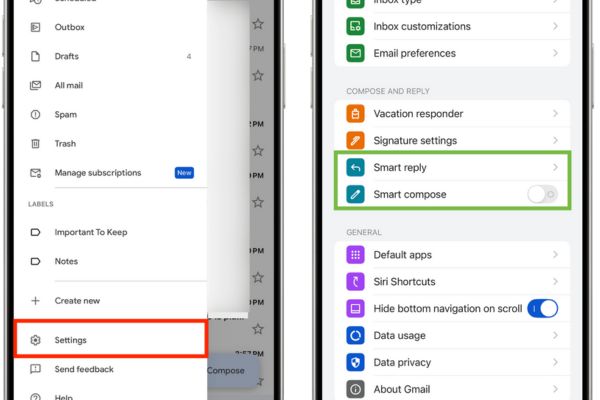
Step 3: To turn it off completely, at the main settings menu, select Data privacy (Data privacy). Here, turn off the item Smart features (Smart feature).
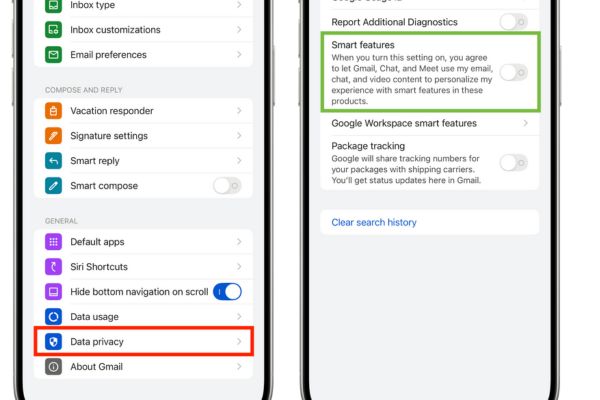
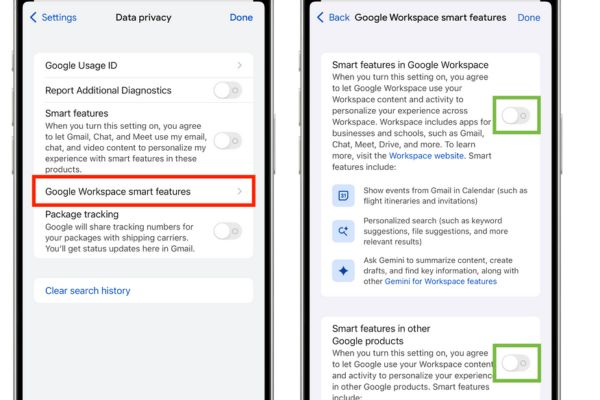
Step 4: Also at this screen, click Google Workspace smart features (Google Workspace smart feature). Turn both off: Smart features in Google Workspace (Smart features in Google Workspace) and Smart features in other Google products (Smart features in other Google products). Press Done to save.
Operations on Android phones
Above Androidthe options are more compact in the account settings, helping to operate more quickly.
Step 1: Open the Gmail application, click on the three-line icon (Menu), select Settings and tap the email address you want to change.
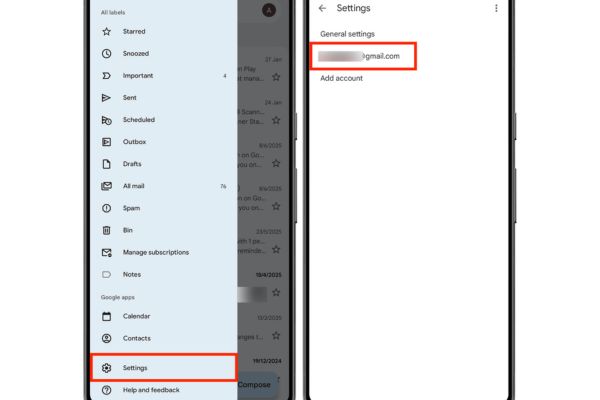
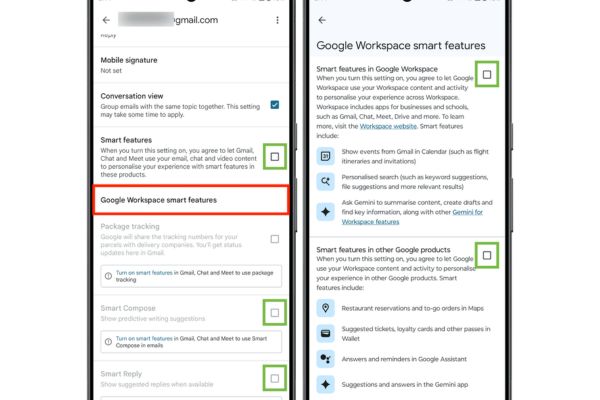
Step 2: Scroll down the list, find and uncheck (uncheck) the boxes: Smart features, Smart Compose and Smart Reply.
Step 3: Continue searching for Google Workspace Smart Features. Click on it and uncheck both subsections: “Smart features in Google Workspace” and “Smart features in other Google products”.
Operations on web browser
If you often work on your computer, turning off this feature on your web browser will be most intuitive and complete.
Step 1: Access your Gmail mailbox on the browser. Click the gear icon (Settings) in the upper right corner, select See all Settings (See all settings).
Step 2: At the card Generalscroll down and make the following changes:
- Smart Compose section: Choose to turn off writing suggestions.
- Smart Compose personalization section: Choose to turn off personalization.
- Smart Reply section: Choose to turn off smart replies.
- Smart features section: Uncheck the boxes in Gmail, Chat, and Meet.
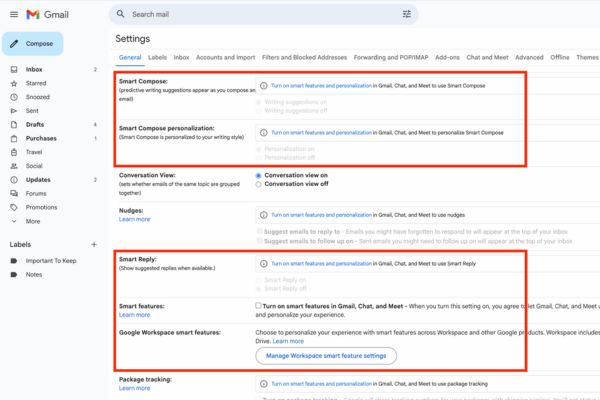
Step 3: Click the button Manage Workspace smart feature settings. Select to turn off two smart features in Workspace and other products, then tap Save.
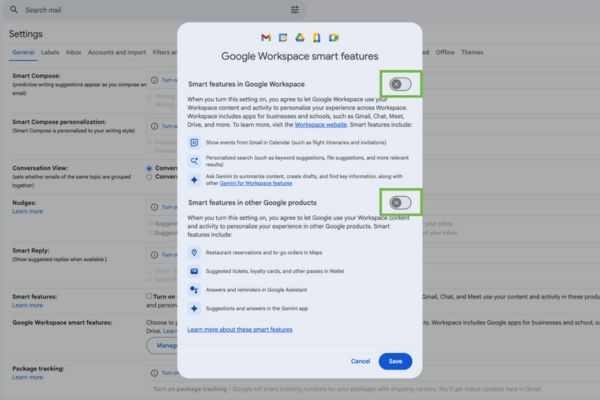
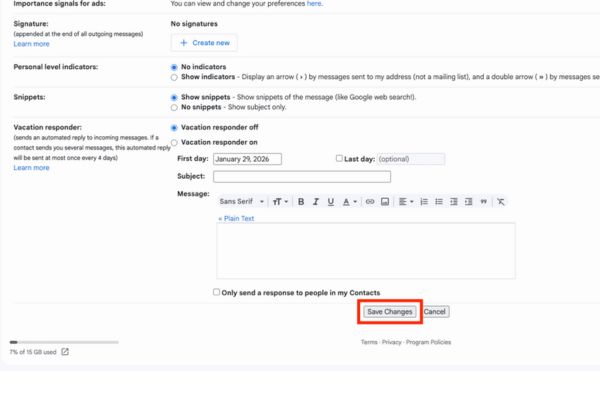
Step 4: Scroll to the bottom of the settings page and press the button Save Changes to complete the process.
Conclusion
After implementation How to turn off AI on Gmailyou will no longer be bothered by mechanical suggestions. Enjoy the freedom to compose emails according to your own style and wishes. Wish you success!


![[Godot RPG]#5: Autotile](https://anonyviet.com/wp-content/uploads/2021/04/05-04-2021-12-09-36.png "[Godot RPG]#5: Autotile")