• Home
  • News
  • Software
  • Knowledge
  • MMO
  • Tips
  • Security
  • Network
  • Office
AnonyViet - English Version
  • Home
  • News
  • Software
  • Knowledge
  • MMO
  • Tips
  • Security
  • Network
  • Office
No Result
View All Result
  • Home
  • News
  • Software
  • Knowledge
  • MMO
  • Tips
  • Security
  • Network
  • Office
No Result
View All Result
AnonyViet - English Version
No Result
View All Result

How to fake GPS on iPhone: “Create fake location” to every location

AnonyViet by AnonyViet
December 25, 2025
in Software
0

How to fake GPS on iPhone is a great trick that allows you to “teleport” anywhere on the world map. Instead of displaying your actual location, you can easily check-in in Paris, Tokyo or New York with just a few simple steps. AnonyViet will guide you to use Relocate tweak to control your location on jailbroken iOS devices.

Join the channel Telegram belong to AnonyViet 👉 Link 👈

Why should you know how to fake GPS on iPhone?

The change GPS location on the phone is not just a fun way to tease friends with “magical” check-ins across five continents. This is also a useful tool to help you protect your privacy and hide your real location from unnecessary applications. For jailbroken iOS devices, Relocate tweak emerges as a perfect, powerful and extremely easy-to-use solution.
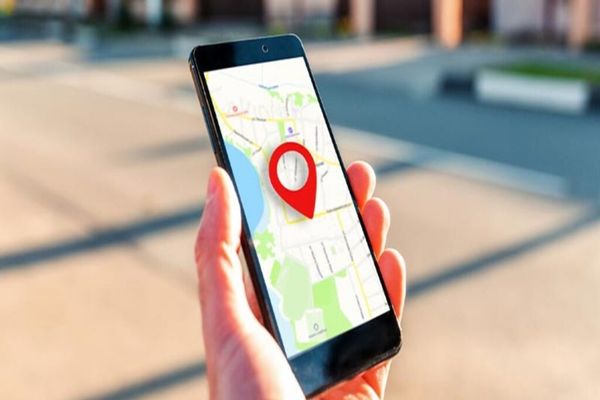
Why should you know how to fake GPS on iPhone?

Relocate: Perfect location change tool for iPhone

Relocate is a tweak specifically for iPhone/iPad devices jailbreak (from iOS 11 and above), allowing users to intervene deeply in the navigation system. It creates a virtual location layer, overwriting the device’s real GPS signal. Thanks to that, every application on your phone will recognize the new location you choose.

Instructions on how to fake GPS on iPhone using Relocate

To start your “world travel” journey right on your iPhone, you just need to follow these simple steps.
Step 1: First, you need to go to Cydia and search for Relocate or quick access HERE.

After successful installation, go to Settings (Settings) on iPhone and navigate to Relocate’s configuration section.

Here, the most important thing is that you must enable the global override function by moving the slider in the Global Override section to the On position (Enabled).

Step 2: Next, click on the item Location to open a world map. You can freely move, zoom in, zoom out and choose any location you want to “set foot” on.
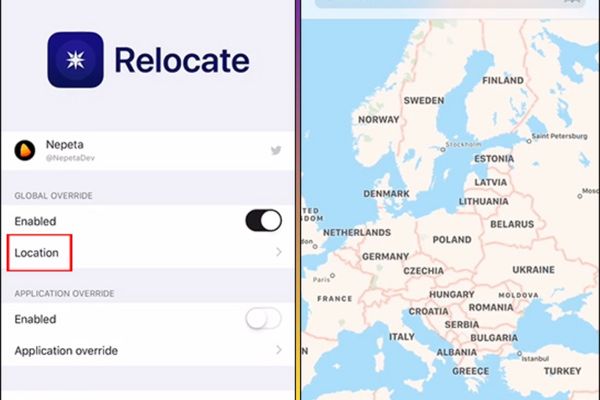
Instructions on how to fake GPS on iPhone using Relocate

Once you select a point, you can drag the item Advanced settings from the bottom to make advanced customizations, such as entering a specific altitude for that location (Altitude).
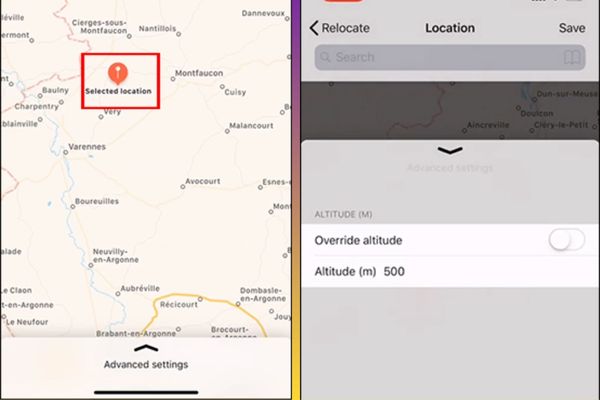
Drag the Advanced settings section from the bottom up

To save this location for future use, just click on the icon stargive it an easy-to-remember name and click OK.
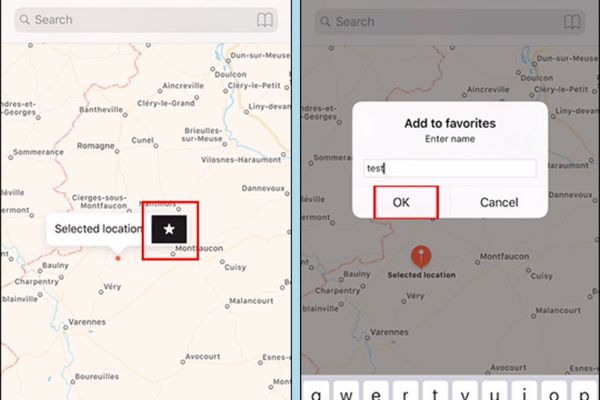
How to save this place

Step 3: An extremely powerful feature of Relocate is that it allows you to set a different pseudo location for each application.

In the main interface of Relocate, find the item Application Override and select the application you want (for example: Facebook, Maps, Zalo).
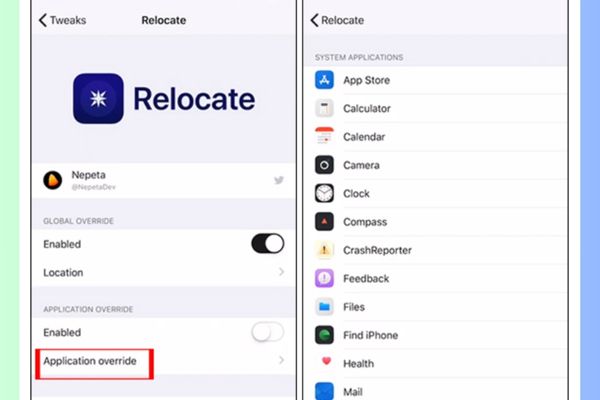
Find the Application Override section

Inside the app’s settings, enable mock location mode and select a location on the map, similar to how you did in Step 2.
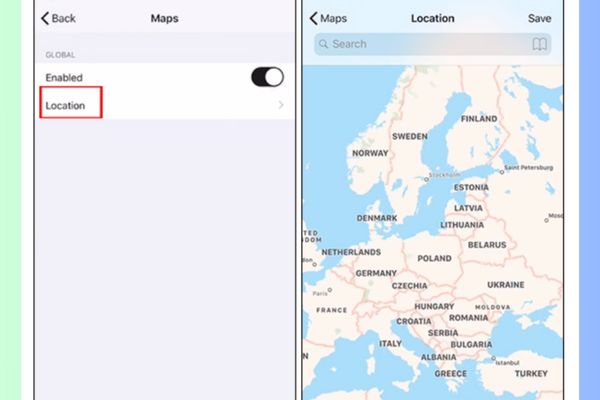
Select a location on the map

Step 4: If you don’t want to manually search the map, Relocate provides a convenient search bar. You just need to return to the map interface, enter the city name, place name or a specific address into the search bar. The results will immediately appear on the map and you can select it as a fake location for your phone.
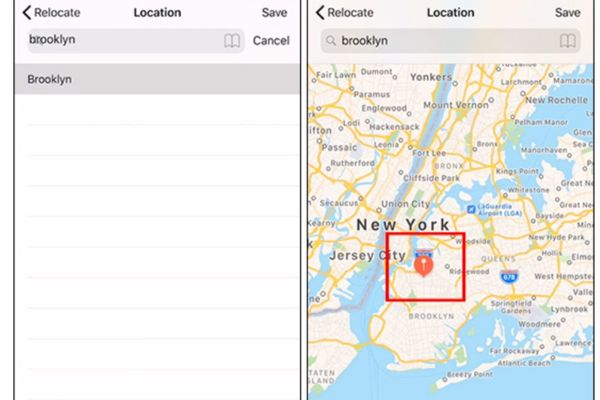
How to manually search on the map

Conclusion

With Relocate tweaking, changing location becomes extremely simple and flexible. Now, you have completely mastered the secret and How to fake GPS on iPhone to freely explore the virtual world. Try it now to experience the feeling of checking in at any location you dream of!


Tags: createfakeGPSiPhoneLocation
Previous Post

Is it necessary to replace Windows 7 now?

Next Post

How to block websites on your computer to prevent others from accessing them

AnonyViet

AnonyViet

Related Posts

How to create Korean-style Polaroid photo frames on Samsung
Software

How to create Korean-style Polaroid photo frames on Samsung

December 27, 2025
Share AnyViewer PRO key for 1 year for free
Software

Share AnyViewer PRO key for 1 year for free

December 20, 2025
Receive Advanced SystemCare Ultimate 18 key for free for 6 months
Software

Receive Advanced SystemCare Ultimate 18 key for free for 6 months

December 15, 2025
Instructions for getting 1 month of free Discord Nitro from Epic Games
Software

Instructions for getting 1 month of free Discord Nitro from Epic Games

December 15, 2025
How to receive 10k free phone card recharge from Lavie
Software

How to receive 10k free phone card recharge from Lavie

December 14, 2025
Instructions for installing the 2026 Tet Countdown Widget for your phone
Software

Instructions for installing the 2026 Tet Countdown Widget for your phone

December 13, 2025
Next Post
How to block websites on your computer to prevent others from accessing them

How to block websites on your computer to prevent others from accessing them

0 0 votes
Article Rating
Subscribe
Login
Notify of
guest

guest

0 Comments
Oldest
Newest Most Voted
Inline Feedbacks
View all comments

Recent News

What is DuckDuckGo? The best search engine to replace Google

What is DuckDuckGo? The best search engine to replace Google

December 28, 2025
How to use Now Bar effectively on Samsung: From lock screen to AOD

How to use Now Bar effectively on Samsung: From lock screen to AOD

December 28, 2025
10 reasons why Linux is better than Windows

10 reasons why Linux is better than Windows

December 27, 2025
How to create Korean-style Polaroid photo frames on Samsung

How to create Korean-style Polaroid photo frames on Samsung

December 27, 2025
What is DuckDuckGo? The best search engine to replace Google

What is DuckDuckGo? The best search engine to replace Google

December 28, 2025
How to use Now Bar effectively on Samsung: From lock screen to AOD

How to use Now Bar effectively on Samsung: From lock screen to AOD

December 28, 2025
10 reasons why Linux is better than Windows

10 reasons why Linux is better than Windows

December 27, 2025
AnonyViet - English Version

AnonyViet

AnonyViet is a website share knowledge that you have never learned in school!

We are ready to welcome your comments, as well as your articles sent to AnonyViet.

Follow Us

Contact:

Email: anonyviet.com[@]gmail.com

Main Website: https://anonyviet.com

Recent News

What is DuckDuckGo? The best search engine to replace Google

What is DuckDuckGo? The best search engine to replace Google

December 28, 2025
How to use Now Bar effectively on Samsung: From lock screen to AOD

How to use Now Bar effectively on Samsung: From lock screen to AOD

December 28, 2025
  • Home
  • Home 2
  • Home 3
  • Home 4
  • Home 5
  • Home 6
  • Next Dest Page
  • Sample Page

https://go99.ae.org/ https://nohu90.bid/

No Result
View All Result
  • Home
  • News
  • Software
  • Knowledge
  • MMO
  • Tips
  • Security
  • Network
  • Office

https://go99.ae.org/ https://nohu90.bid/

wpDiscuz
0
0
Would love your thoughts, please comment.x
()
x
| Reply