• Home
  • News
  • Software
  • Knowledge
  • MMO
  • Tips
  • Security
  • Network
  • Office
AnonyViet - English Version
  • Home
  • News
  • Software
  • Knowledge
  • MMO
  • Tips
  • Security
  • Network
  • Office
No Result
View All Result
  • Home
  • News
  • Software
  • Knowledge
  • MMO
  • Tips
  • Security
  • Network
  • Office
No Result
View All Result
AnonyViet - English Version
No Result
View All Result

How to backup SMS and restore on Android

AnonyViet by AnonyViet
January 27, 2023
in Software
0

Let’s say you receive an important SMS and while trying to save it, you accidentally delete it. Now, how do you recover deleted messages? You can use phone data recovery software or you can backup your SMS messages on Android to avoid trouble in the first place. To do this, you can use the Google Backup feature or choose a third-party SMS backup and restore tool. In this article, I will show you both ways to backup SMS messages and restore them on Android.

Join the channel Telegram of the AnonyViet 👉 Link 👈

How to backup SMS and restore on Android

1. Backup SMS with Google Backup

Google provides a default SMS backup and restore feature. However, it comes with some limitations like it’s not available on all Android devices and you can’t control when Google should perform automatic SMS backup and the backup will expire after 57 days.

On the plus side, this is the best option if you’re worried about your privacy as it doesn’t involve using a third-party tool for SMS backup and restore.

How to backup SMS messages to Google Drive?

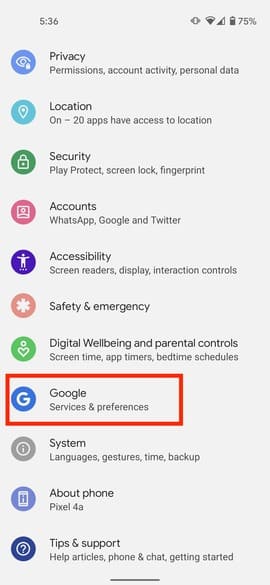
Step 1: Go to the Settings app on your Android phone.
How to backup SMS messages to Google Drive?

Step 2: Select Google > Backup.

Backup

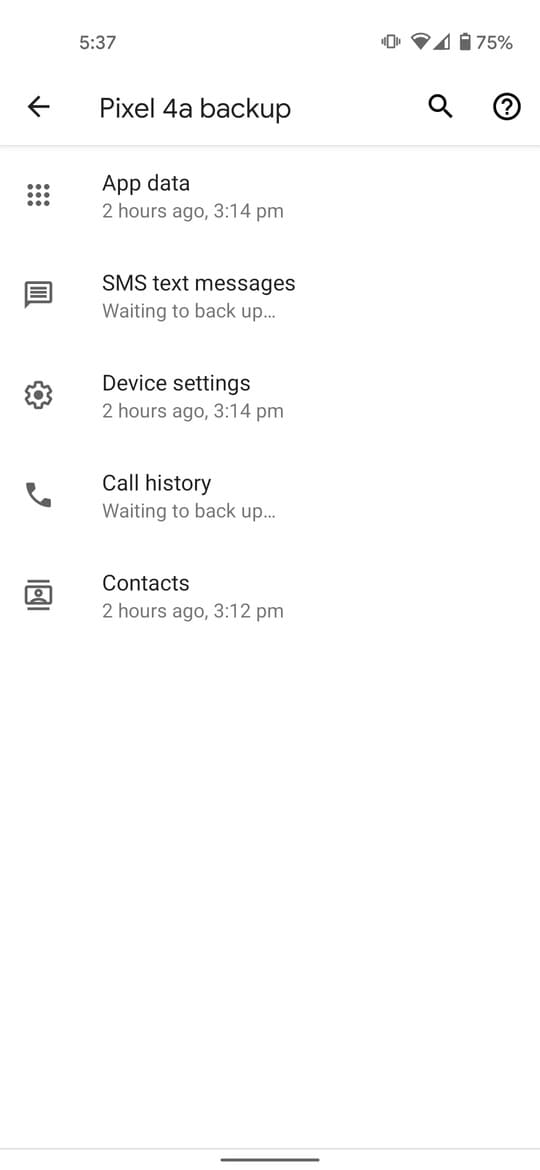
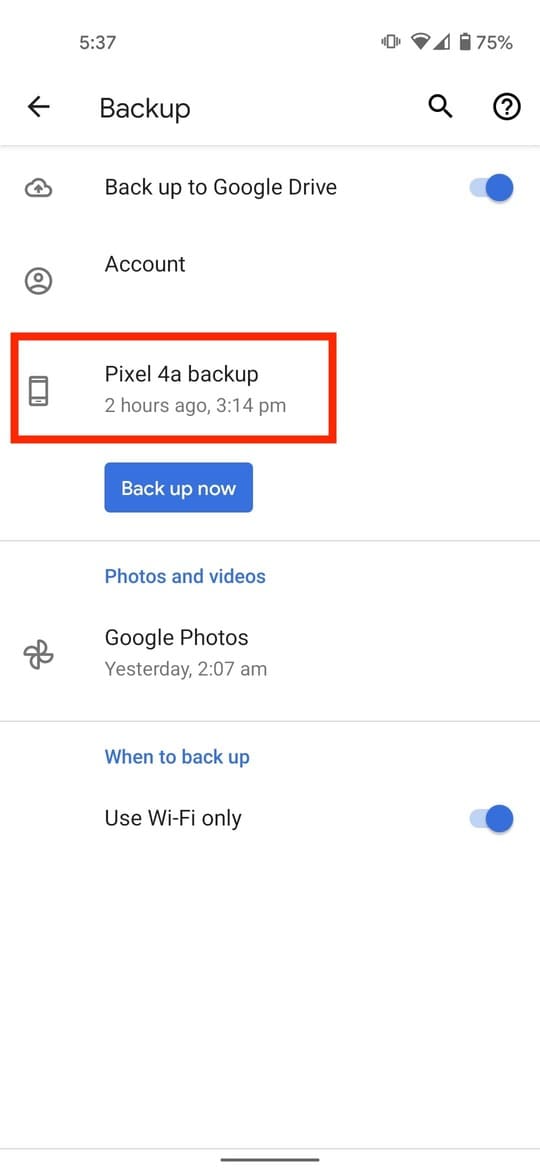
Step 3: Tap your device’s name and see if there’s a “SMS Text Messages” section.
SMS Text Messages backup android messages

Step 4: Go back and tap “Backup Now”.

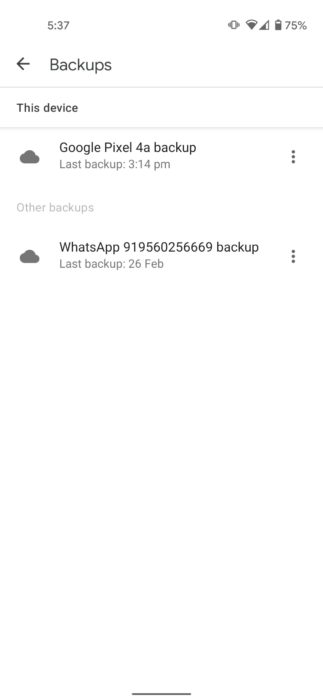
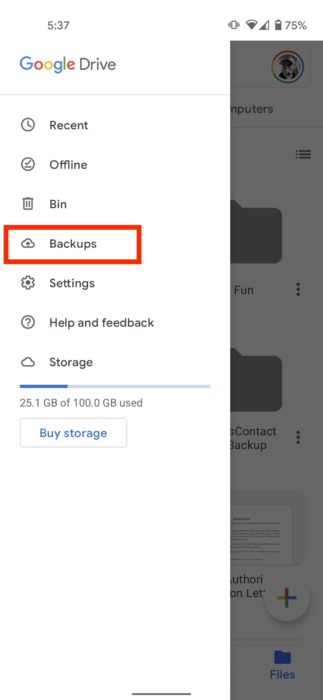
Once the backup is complete, you will find the backup in the tab Backups of Google Drive.
Backup Now

How to backup SMS and restore on Android 3

Note you cannot restore the SMS backup until you do a factory reset (reset) of the device. So use Google backup if you are setting up a new Android device and want to restore SMS messages.

2. Backup SMS messages with third-party software

Another way to backup SMS messages on Android is through third-party software. SMS Backup and Restore is a good choice and is generally recommended. But I like it SMS Organizer from Microsoft.

SMS Organizer

Because this is not only a tool to backup SMS on Android but also an SMS app known for organizing messages in an intuitive way. I used SMS Organizer for a long time and never felt the need for another SMS app.

Of course, if you prefer Google’s default messaging app or any other SMS app, you can always use the SMS Backup and Restore app on Android to backup your SMS messages. But here, I will show you how to backup SMS messages using SMS Organizer.

How to backup SMS messages using SMS Organizer

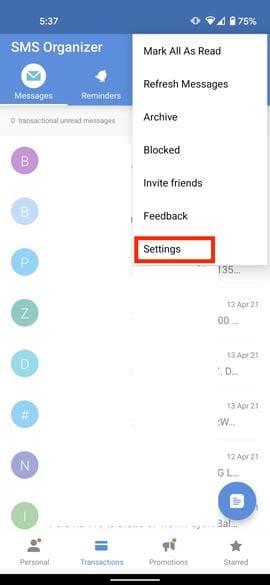
Step 1: Open the SMS Organizer application.

Step 2: Tap the top right menu icon.
How to backup SMS messages using SMS Organizer

Step 3: Select Settings.

Step 4: Click Backup & Restore.
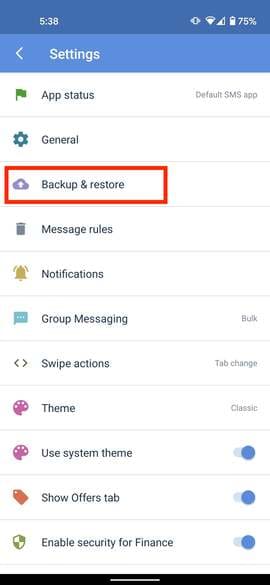
Backup & Restore android sms messages

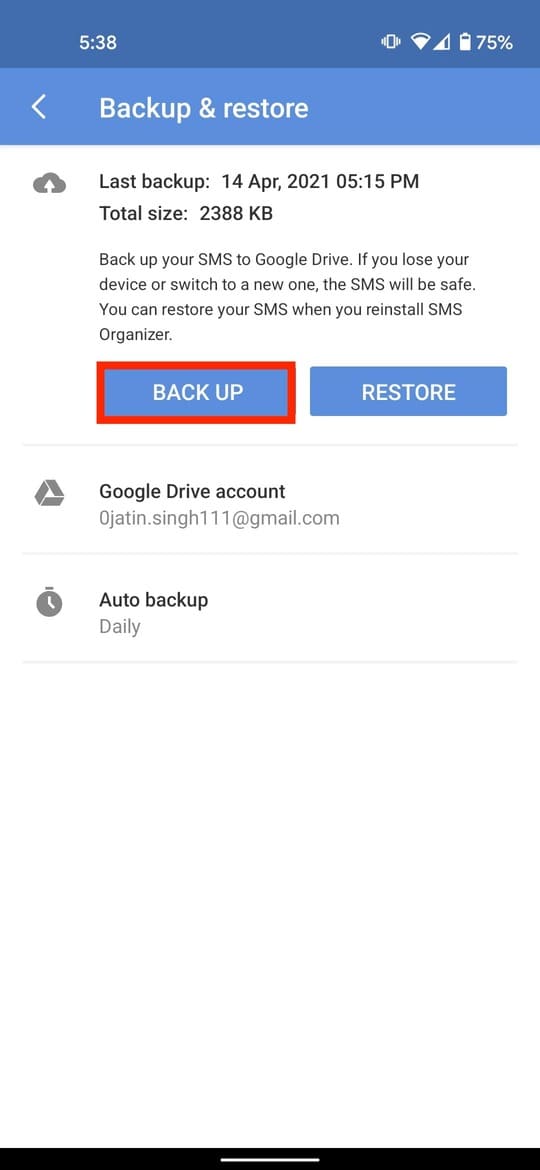
Step 5: Select Backup.

Backup

Step 6: Click Auto Backup and set automatic backup time like daily, weekly or monthly.
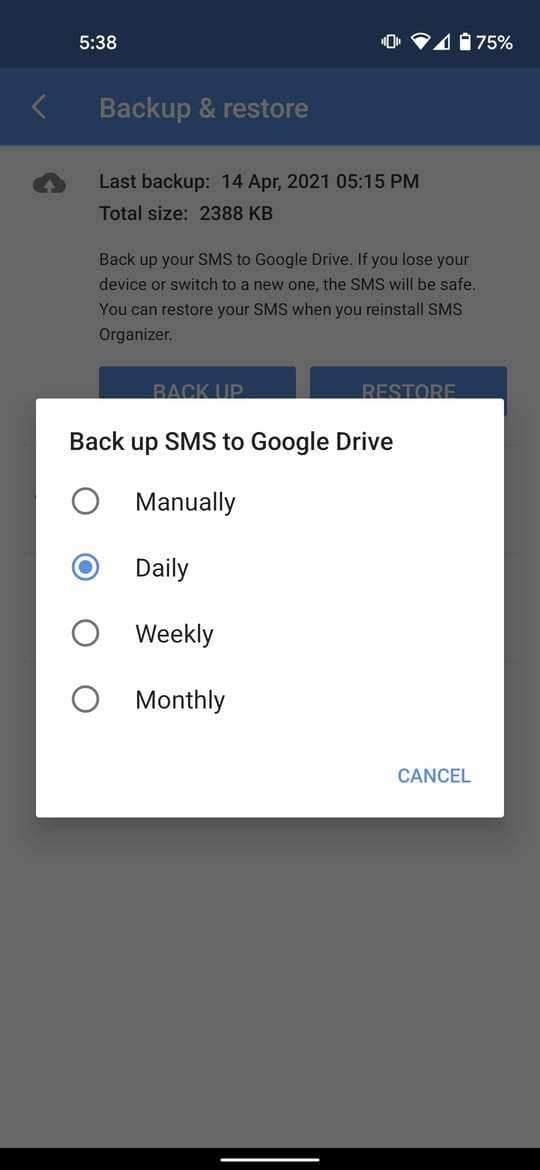
Auto Backup

If you want to recover SMS messages on a new Android device, just App settings > Sign in go to your account and select Restore.

Unlike SMS Backup and Restore, SMS organizer does not have the option to backup SMS hourly or set a scheduled recurring time for automatic backup. Both apps are great for backing up your SMS messages on Android.


The article achieved: 5/5 – (100 votes)

Tags: AndroidBackuprestoreSMS
Previous Post

How to see recalled messages on Facebook Messenger

Next Post

6 best Windows Password Hack tools today

AnonyViet

AnonyViet

Related Posts

How to authenticate the owner’s SIM on VNeID from April 15
Software

How to authenticate the owner’s SIM on VNeID from April 15

April 15, 2026
Review of Galaxy A57 and A37: Some are eight ounces, some are half a pound
Software

Review of Galaxy A57 and A37: Some are eight ounces, some are half a pound

April 14, 2026
JOPDF: Versatile PDF editing software for Windows and Mac
Software

JOPDF: Versatile PDF editing software for Windows and Mac

April 10, 2026
MyVehicle: Convenient and secure motorcycle maintenance reminder app
Software

MyVehicle: Convenient and secure motorcycle maintenance reminder app

April 10, 2026
How to turn off AI on Gmail to absolutely protect personal data
Software

How to turn off AI on Gmail to absolutely protect personal data

April 8, 2026
How to add Settings to Control Center using Shortcuts
Software

How to add Settings to Control Center using Shortcuts

April 7, 2026
Next Post
6 best Windows Password Hack tools today

6 best Windows Password Hack tools today

0 0 votes
Article Rating
Subscribe
Login
Notify of
guest

guest

0 Comments
Oldest
Newest Most Voted
Inline Feedbacks
View all comments

Recent News

How to add Watermark to Google Docs to protect copyright

How to add Watermark to Google Docs to protect copyright

April 19, 2026
How to intercept traffic using Burp Suite to analyze HTTP/HTTPS

How to intercept traffic using Burp Suite to analyze HTTP/HTTPS

April 18, 2026
How to avoid Adblock detection on Youtube with 4 good tips

How to avoid Adblock detection on Youtube with 4 good tips

April 17, 2026
How to transfer ChatGPT data to Claude is extremely simple

How to transfer ChatGPT data to Claude is extremely simple

April 16, 2026
How to add Watermark to Google Docs to protect copyright

How to add Watermark to Google Docs to protect copyright

April 19, 2026
How to intercept traffic using Burp Suite to analyze HTTP/HTTPS

How to intercept traffic using Burp Suite to analyze HTTP/HTTPS

April 18, 2026
How to avoid Adblock detection on Youtube with 4 good tips

How to avoid Adblock detection on Youtube with 4 good tips

April 17, 2026
AnonyViet - English Version

AnonyViet

AnonyViet is a website share knowledge that you have never learned in school!

We are ready to welcome your comments, as well as your articles sent to AnonyViet.

Follow Us

Contact:

Email: anonyviet.com[@]gmail.com

Main Website: https://anonyviet.com

Recent News

How to add Watermark to Google Docs to protect copyright

How to add Watermark to Google Docs to protect copyright

April 19, 2026
How to intercept traffic using Burp Suite to analyze HTTP/HTTPS

How to intercept traffic using Burp Suite to analyze HTTP/HTTPS

April 18, 2026
No Result
View All Result
  • Home
  • News
  • Software
  • Knowledge
  • MMO
  • Tips
  • Security
  • Network
  • Office

wpDiscuz
0
0
Would love your thoughts, please comment.x
()
x
| Reply