
How to create Android apps using Google AI Studio Truly changed the game of mobile programming. Just type a few lines of description and you will immediately have an application running smoothly on your phone. It sounds crazy but it’s a hundred percent true, guys. Let’s go together AnonyViet Learn about each step in detail.
📢 Join the channel Telegram belong to AnonyViet
Update new articles, cool tools and IT tips fastest
Instructions on how to create Android apps using Google AI Studio
Step 1: Create project
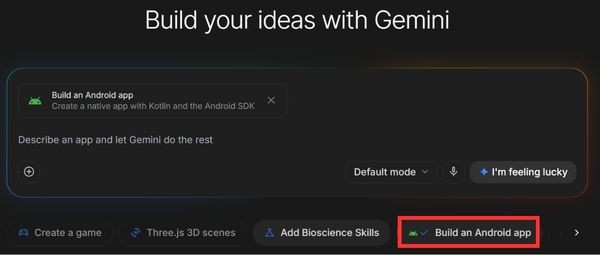
First, just open the home page Google AI Studio then find section New app. Pay close attention to this part, you must choose the right one Build an Android app appears on the screen. Thanks to that, AI understands that we want to make a native app using the Kotlin language, not a regular web.
Step 2: Come up with ideas and give orders to AI
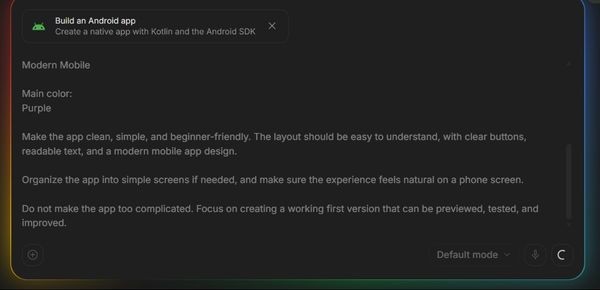
Instead of typing a curt sentence like “make me a habit tracking app”, you should write it out in detail and clearly. The more detailed it is, the more accurate the AI will be according to the following ideas:
Create a simple Android app called:

The app idea is:

The app is made for:

The app should include these main features:

Design style: Modern Mobile

Main color:

Make the app clean, simple, and beginner-friendly. The layout should be easy to understand, with clear buttons, readable text, and a modern mobile app design.

Organize the app into simple screens if needed, and make sure the experience feels natural on a phone screen.

Do not make the app too complicated. Focus on creating a working first version that can be previewed, tested, and improved.
For example: I told him to make an app called Daily Habit, the main color is purple, modern design style for mobile devices. Features need to include a button to add a habit, mark completion, view progress for the day, and a reset button. After typing, press the arrow button and wait for the results.
Create a simple Android app called Daily Habit.
The app idea is: A simple habit tracker app that helps users build better daily routines.
The app is made for: People who want to track their daily habits and stay consistent.
The app should include these main features: Add habits, mark habits as completed, view today's progress, reset daily tasks, and see a simple progress summary.
Design style: Modern Mobile
Main color: Purple
Make the app clean, simple, and beginner-friendly. The layout should be easy to understand, with clear buttons, readable text, and a modern mobile app design.
Organize the app into simple screens if needed, and make sure the experience feels natural on a phone screen.
Do not make the app too complicated. Focus on creating a working first version that can be previewed, tested, and improved.
Step 3: Preview and test the application
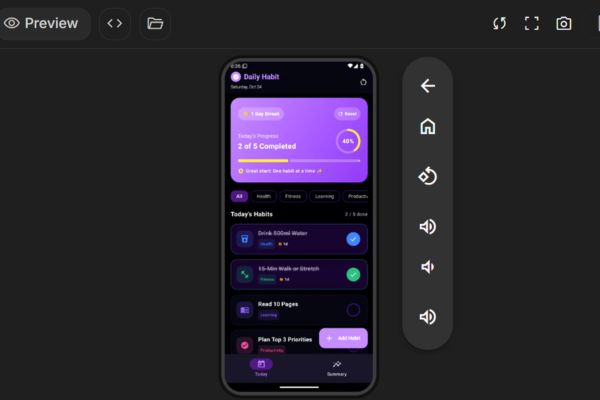
After selecting, a virtual phone will appear right in the middle of the computer screen in the tab Preview. You can click directly on this screen.
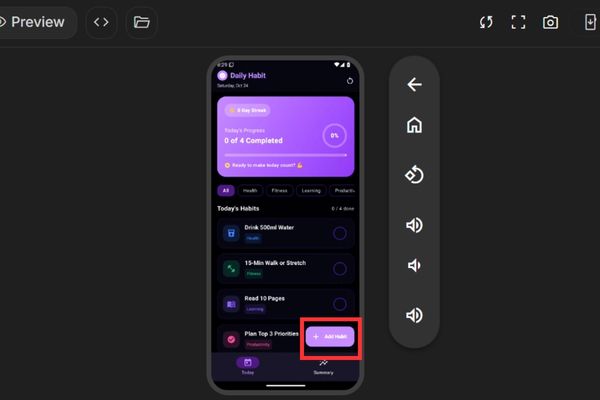
I tried interacting with the app like adding some habits like drinking water or going for a walk to see what happens. After checking, you will see the progress bar also run with the corresponding percentage.
How to upgrade the application more professionally
The app looked a bit boring at first, now we’re going to make it look more professional.
Step 1: Improve with serial commands
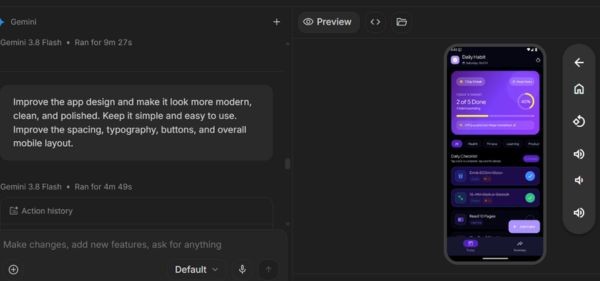
The golden rule when playing with AI is to never force it to rebuild from scratch. Instead, ask it to correct it little by little through the next commands. I said it makes the interface look a bit more modern.
Improve the app design and make it look more modern, clean, and polished. Keep it simple and easy to use. Improve the spacing, typography, buttons, and overall mobile layout.
The app changes to a dark color tone that looks completely luxurious, and the buttons are also smoother. Next, I want to add a weekly activity tracking chart, then add a habit counting feature so that users are motivated to do it every day. Finally, add a toggle switch for dark and light mode in the upper corner. Every time I order, the app gets better. Too much!
Step 2: Fix errors and install on real phone
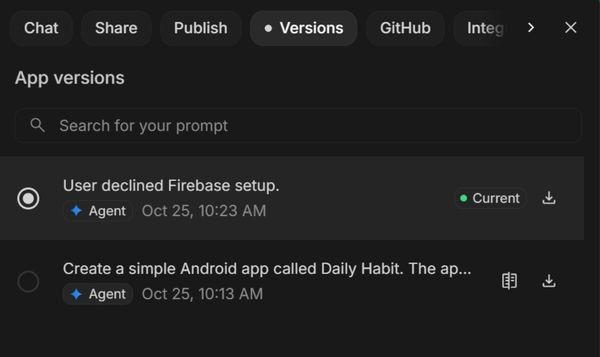
Working with AI is not always perfectly smooth. In section Settings There is a history of versions in section Versions. You just need to open it, select the previously error-free version, then click Restore version and you’re done. Thanks to that, I can freely tinker without fear of breaking anything.
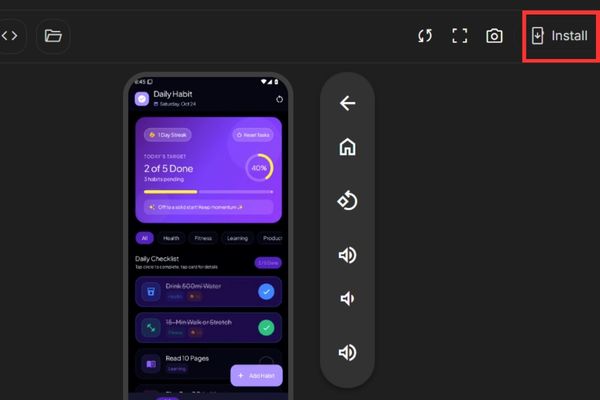
If you want to show off to your friends, you can plug the USB cable into your Android phone, turn on debugging mode and then install the app directly from the browser to your device via the button. Install.
For those who are familiar with code, just switch to the tab Code then click Export to download the original zip file source code. Throw that block into the specialized software and move on.
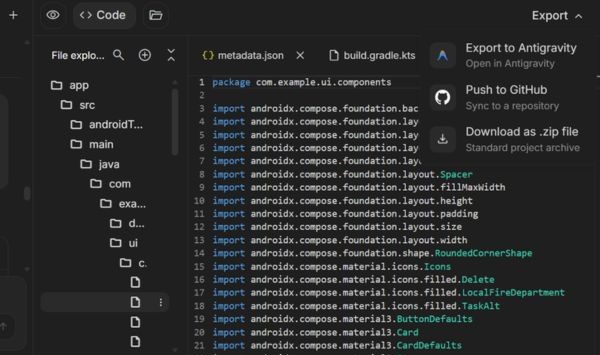
Having said that, it must be said again that the current method of creating Android apps using Google AI Studio is only suitable for making quick drafts. If you want to bring it to the app market to make money, you still have to test it, take care of data storage and security, etc. But as a starting point, this tool is really worth checking out.
Conclusion
In short How to create Android apps using Google AI Studio brings an extremely new and exciting experience. You don’t lose any money and still have an app to play on your phone. Feel free to try your craziest ideas. Who knows, maybe one fine day a masterpiece with millions of downloads will be created.
Frequently Asked Questions (Q&A)
1. Does using this tool cost money?
Completely free at the present time, you just need a Google account to log in and use freely.
2. Do I need to know programming to make an app?
Not at all, you just need to know how to type Vietnamese or English to describe the idea and the AI will take care of all the complex code below.
3. Can the created app be posted to the CH Play store?
Not yet, this is just a draft for testing, you need to further refine data and security before it can be officially published.